Tavern: How to use the console
written 11 /11/2022The tavern is becoming increasingly important. Since 10 November 2022, it has also provided server owner access to the console.
The advantage of the tavern is that it is accessible from any device. No matter whether PC, Mac or mobile phone. To show how easy it is to use, I show screenshots from the mobile phone here. Views on PC/Mac hardly differ.
1. Set up console
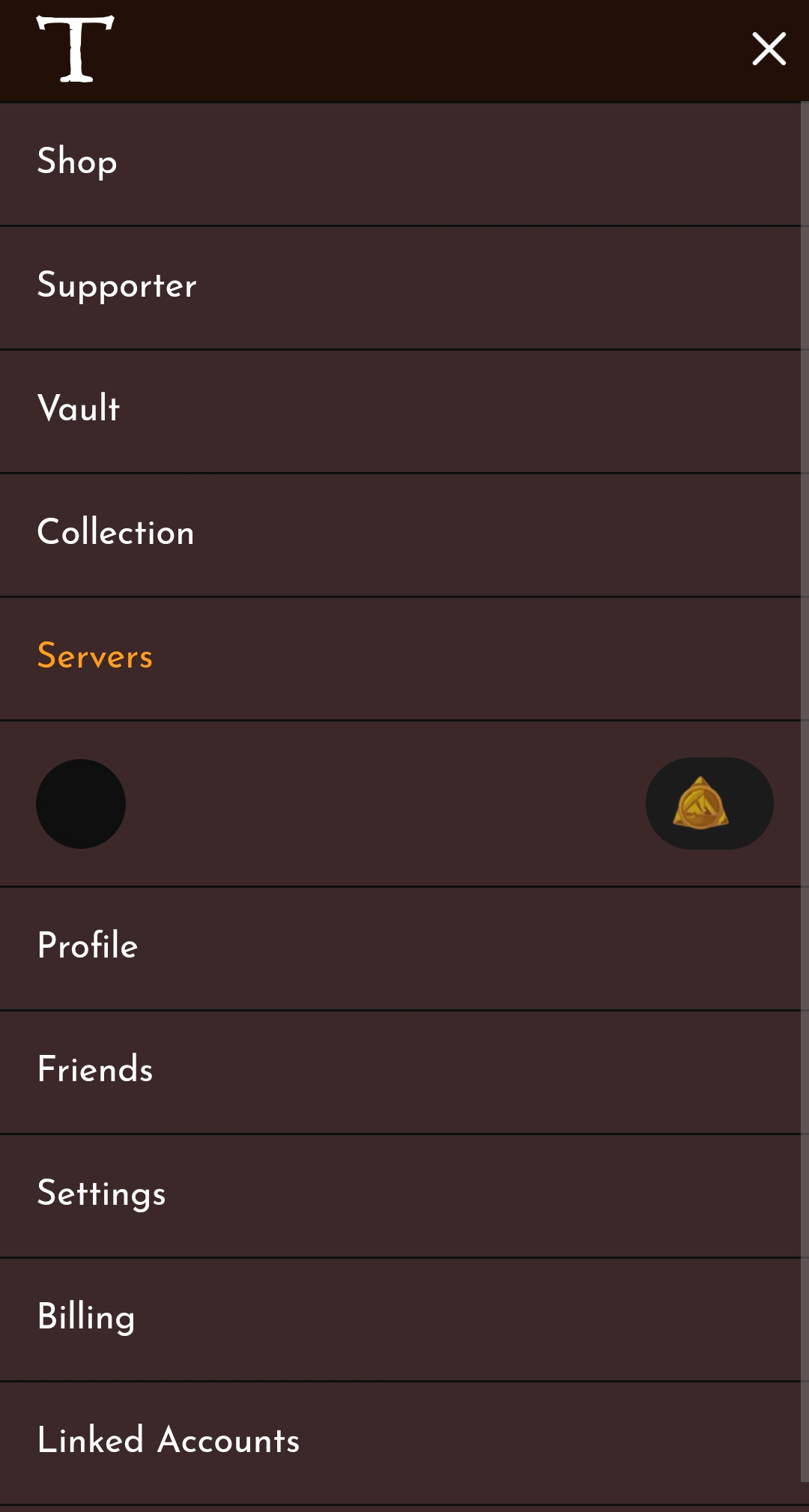
In the menu of the tavern you will find the entry "servers". Click on it
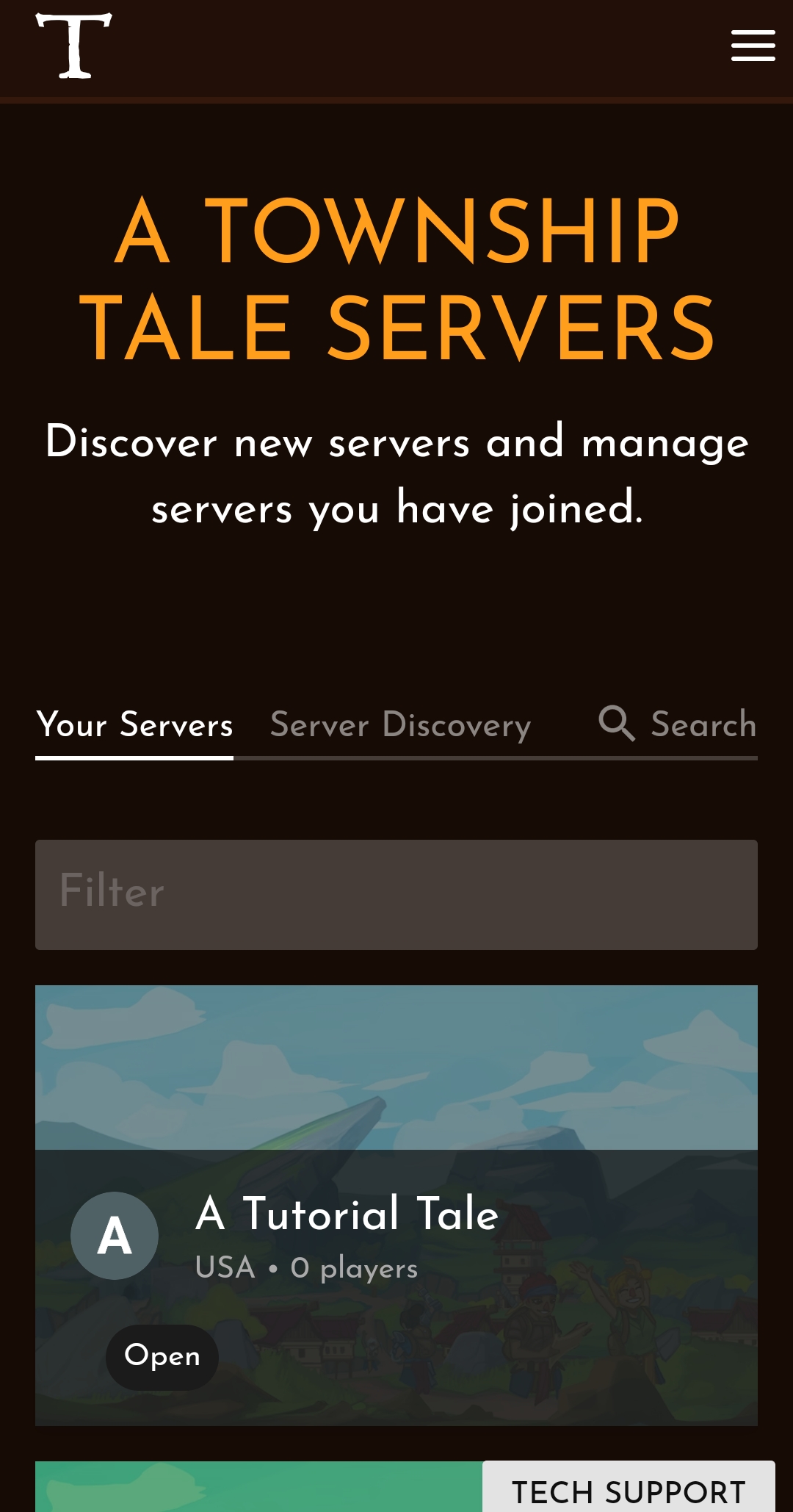
You land in the overview of the server administration. Here you can see your visited servers, discover new ones and, above all, manage your own servers! Scroll through the tab "your servers" to find your server or use the filter and enter the name of your server.
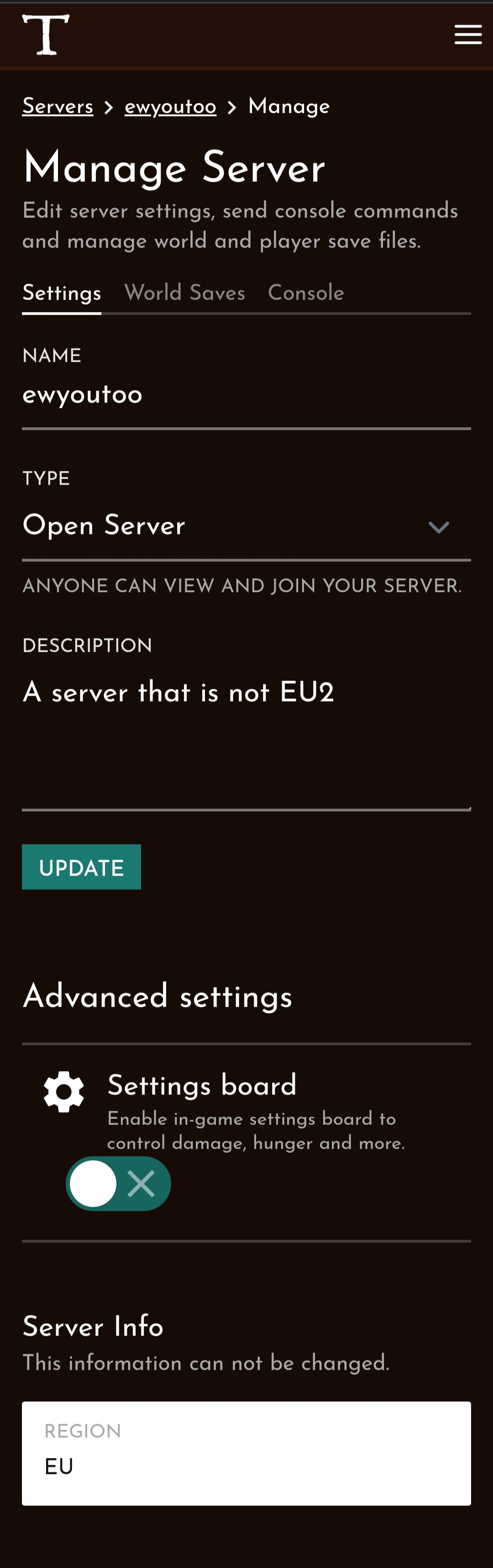
Once you have clicked on your server, you will be taken to its overview. You can read how to manage your own users and make settings on the server in the other tutorials. Today we want to go to the console and click directly on "MANAGE SERVER" at the top right. This button only appears for you if you have the appropriate rights.

This is the administrative centre of your server. Here you can make settings on your server, create and load backups and also gain access to the console.
Please click on the tab "Console" to get there.
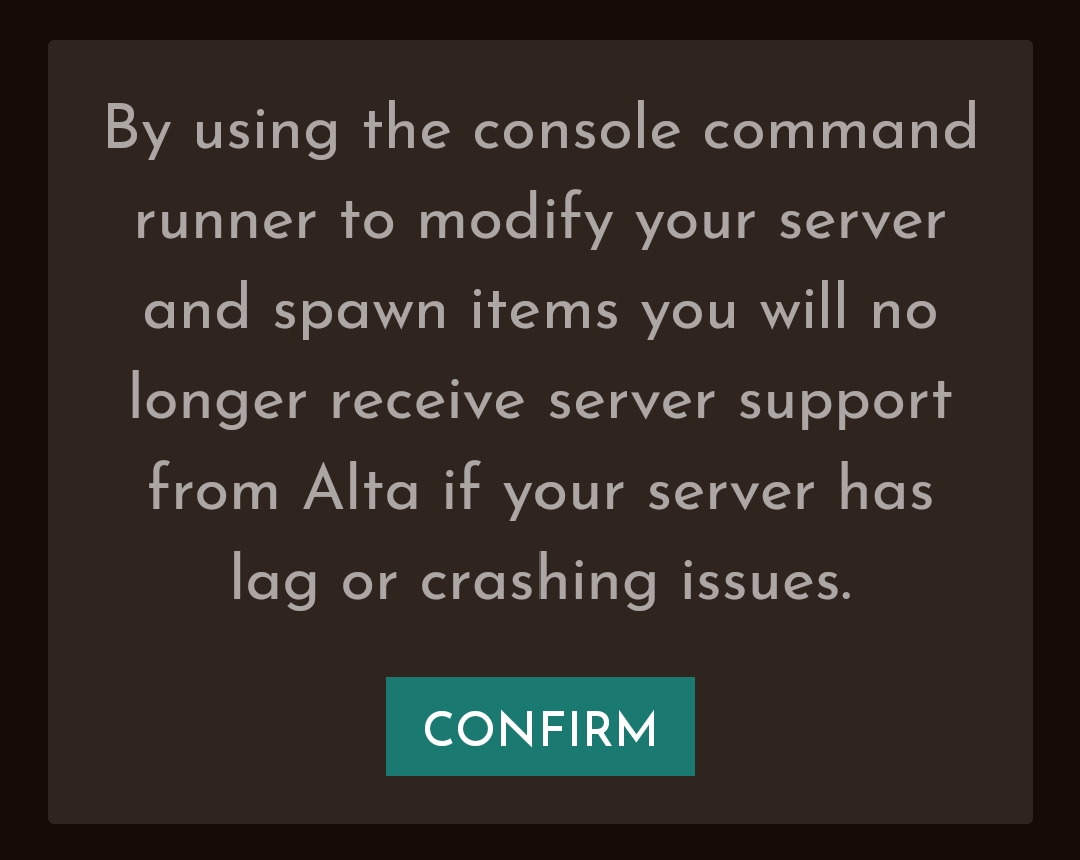
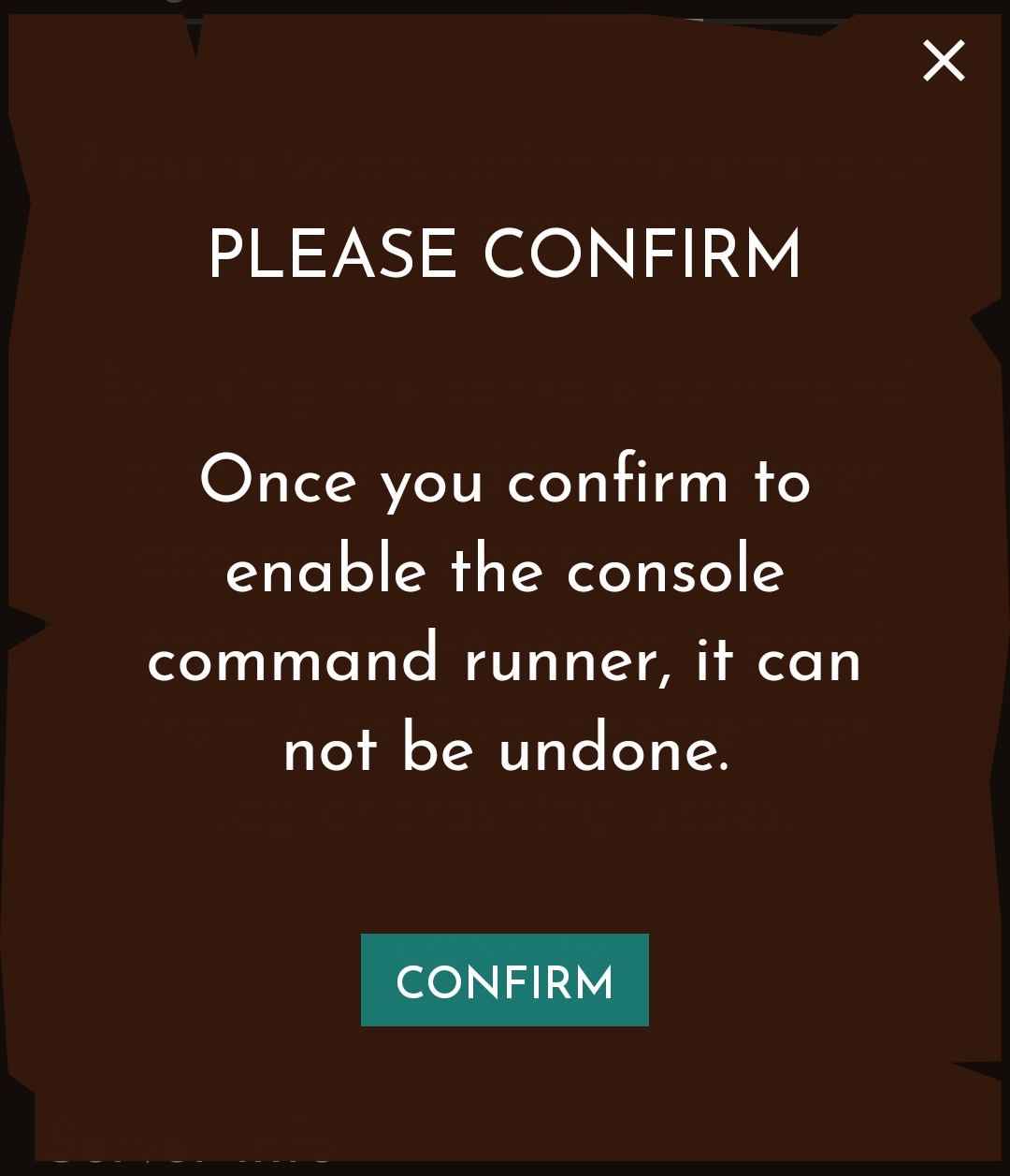
When using your server's console for the first time, you must first agree that Alta will not bail you out if you wilfully or through ignorance damage your server using the console.
Please only agree to this and confirm it a second time if you are really sure that you want to follow this rabbithole.
2. Use the console
Whew, that was pretty exciting, wasn't it?
There's no turning back now, so be careful with your server. If you screw it up completely, it might have to be completely wiped, if that still helps.
But brave as you are, you still want to try. So continue with the show!
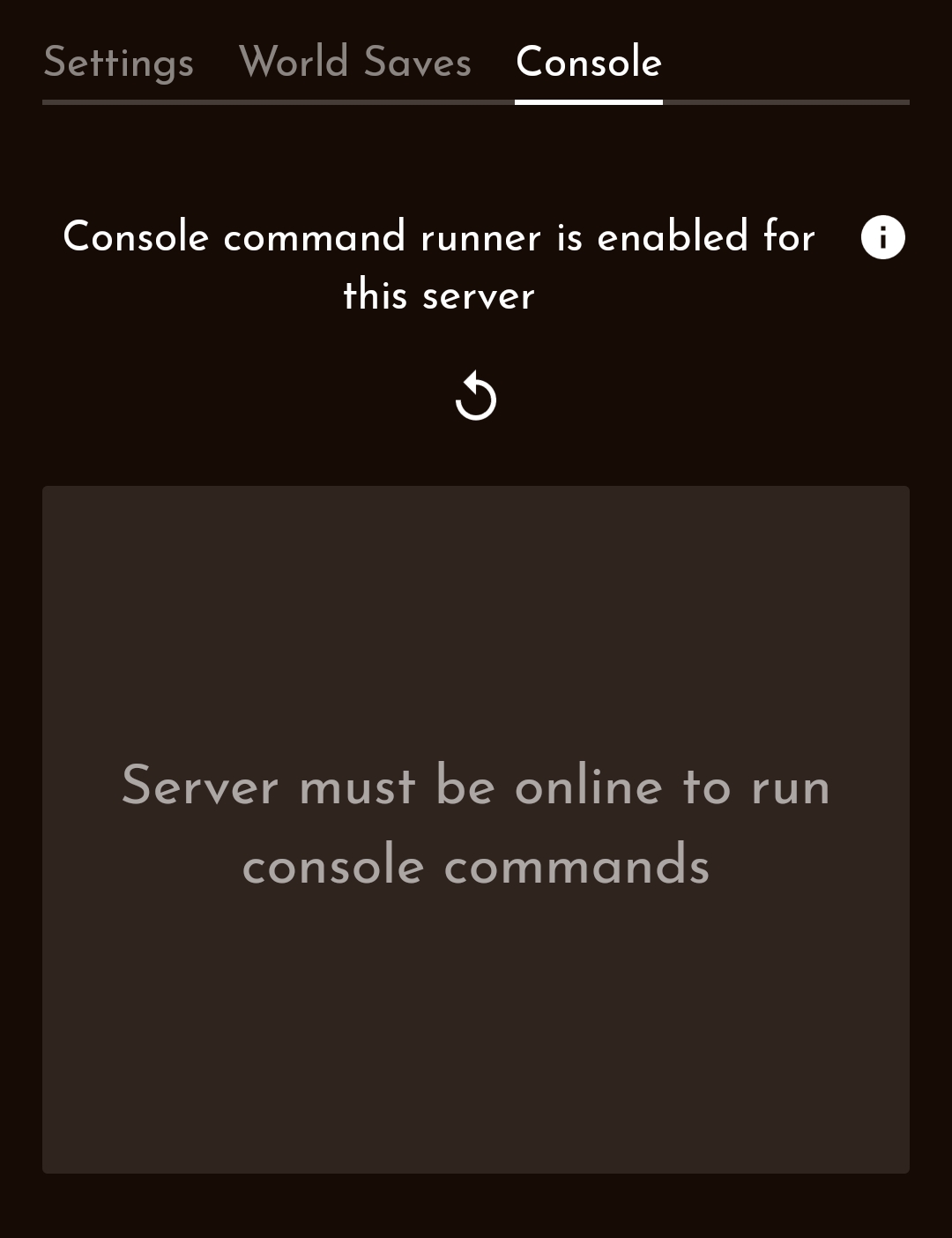
Just like the Dashboard, ATTPrefabulator, QuestManager and bots, the console requires access to an online server. If no players are online, the server shuts down and you have no access.
If you see this notice, enter the server yourself or ask a friend to do it for you.
Once the server is active, you can click on the curved arrow to reload the console.
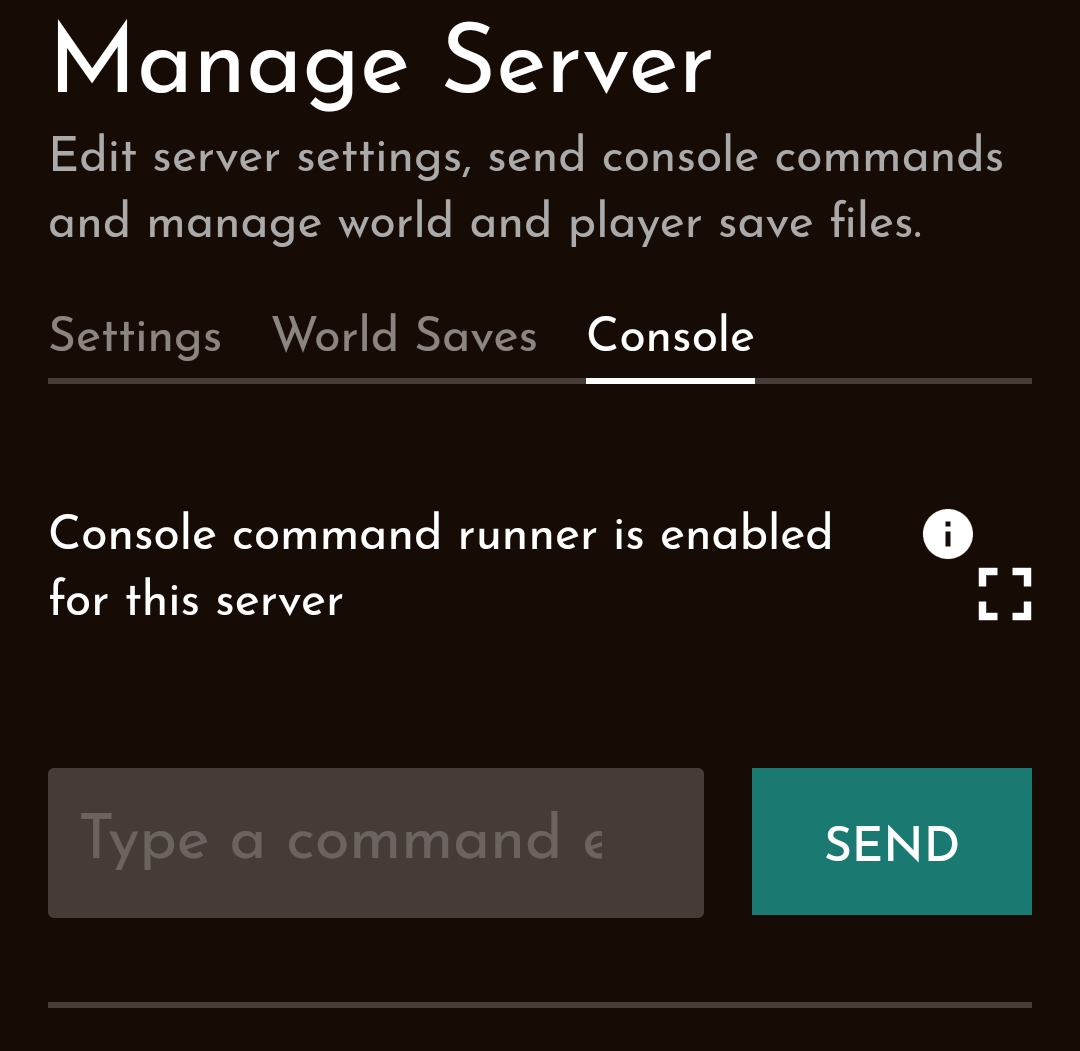
Finally you have access to the console!
The command runner consists only of an input field, a button for sending and below it a list of the commands you have just used.
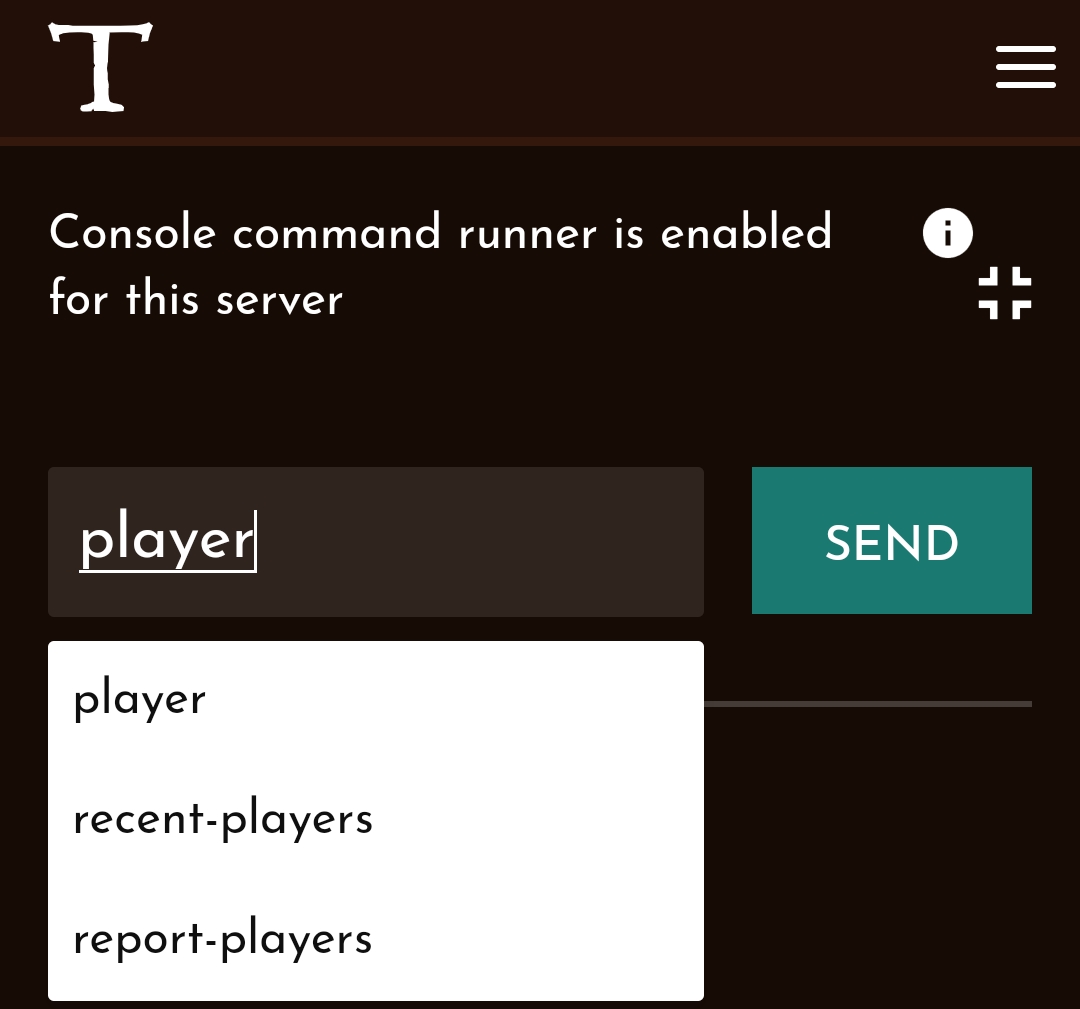
If you try to enter a command in the field, the console will help you by suggesting modules that you can access.
Let's test something simple! We ask for the time on the server.
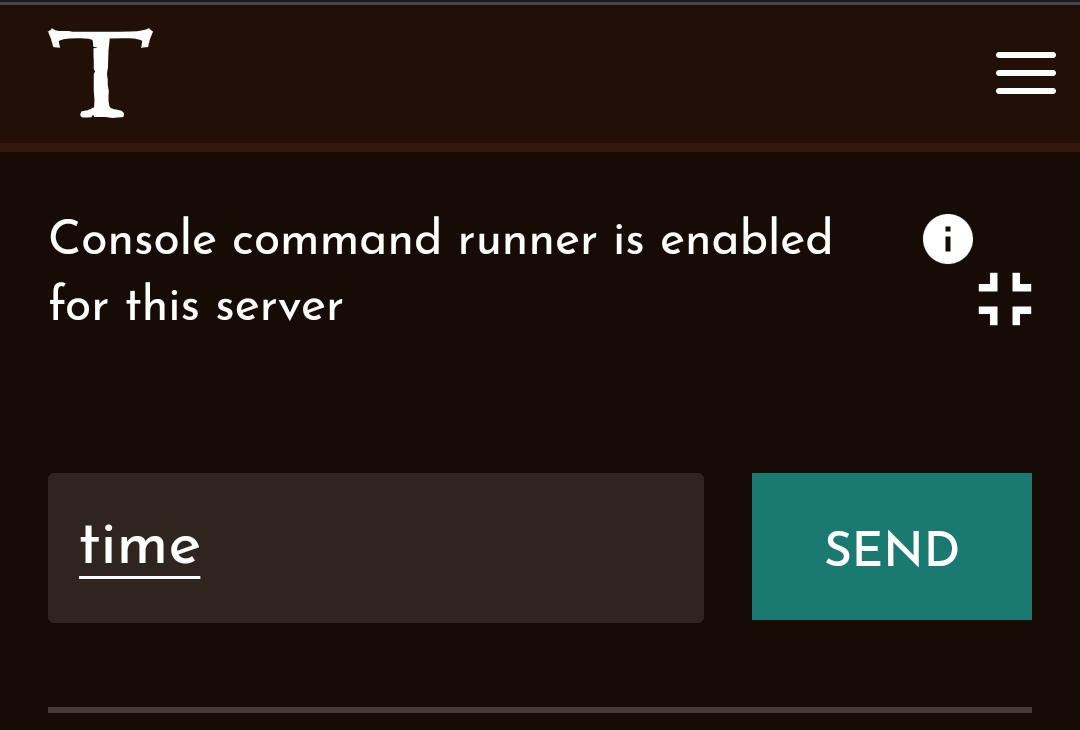
Write "time" in the console and hit enter or press the "SEND" button.
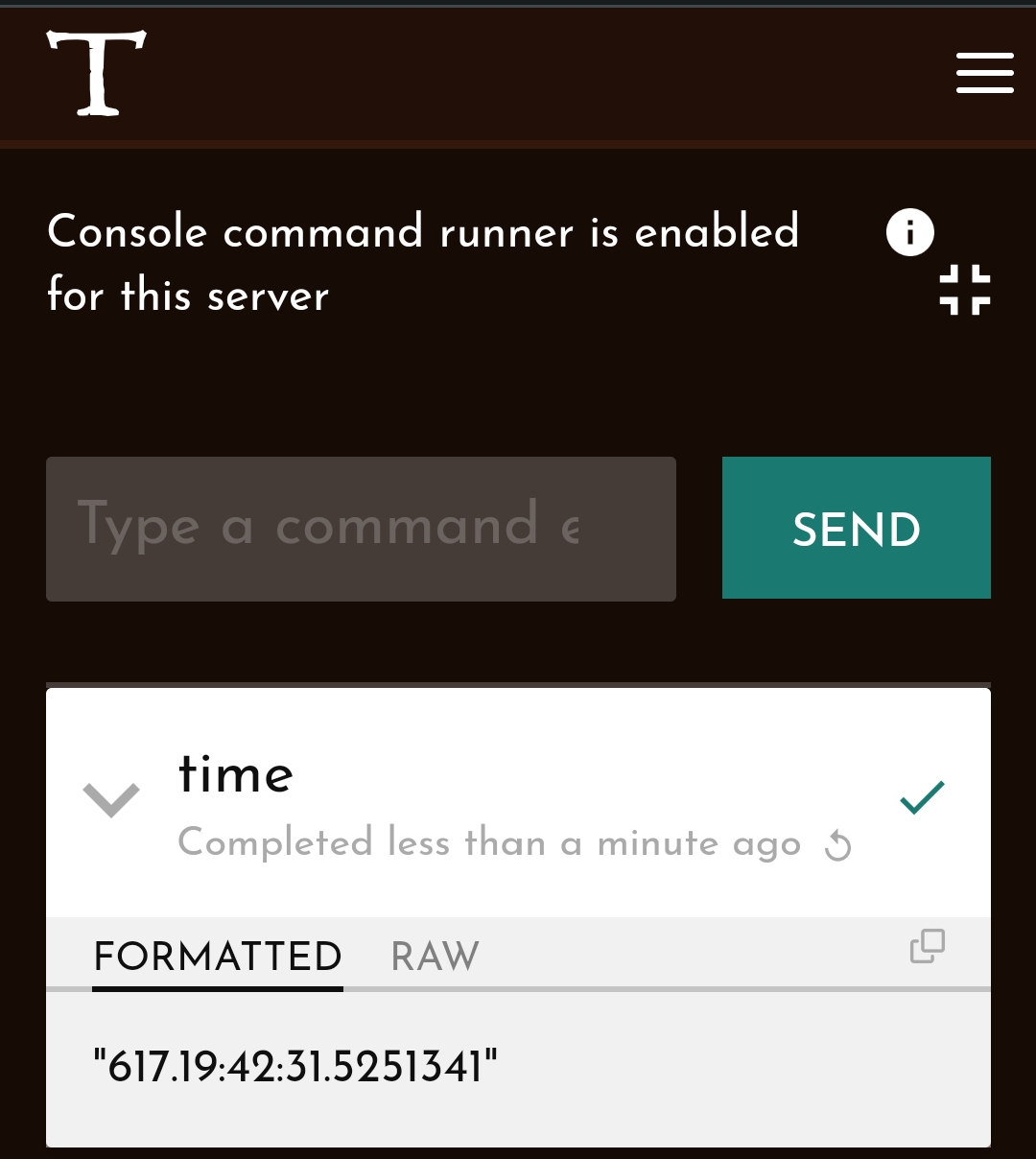
Great! The server has processed our request and sent us an answer. You can see from the green tick that everything went well and from the answer we can see that on this server it is 19:42 and 31 seconds.
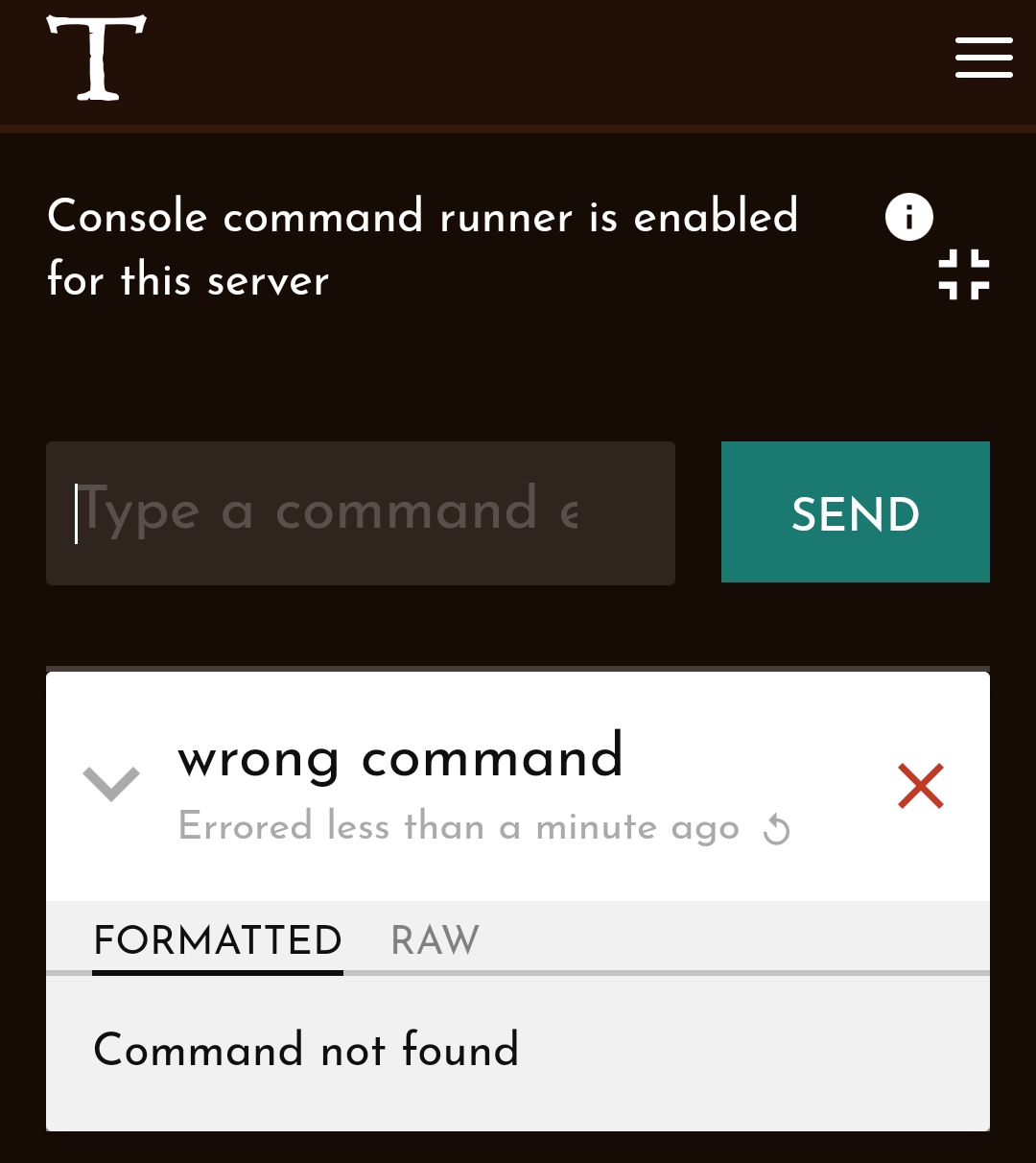
If you make a mistake, such as a typo, or enter a command that does not exist, you will receive an error message. You can recognise this by the red X.
Now you know how to access the console, how to activate it and how to enter commands. If you want to know more about the available commands, look here: